


Users ask “Where are the docs for XYZ?” when the answer is right there on page 12. They just can’t find it.
An AI chatbot lets them ask in plain language and get instant answers from your existing documentation.
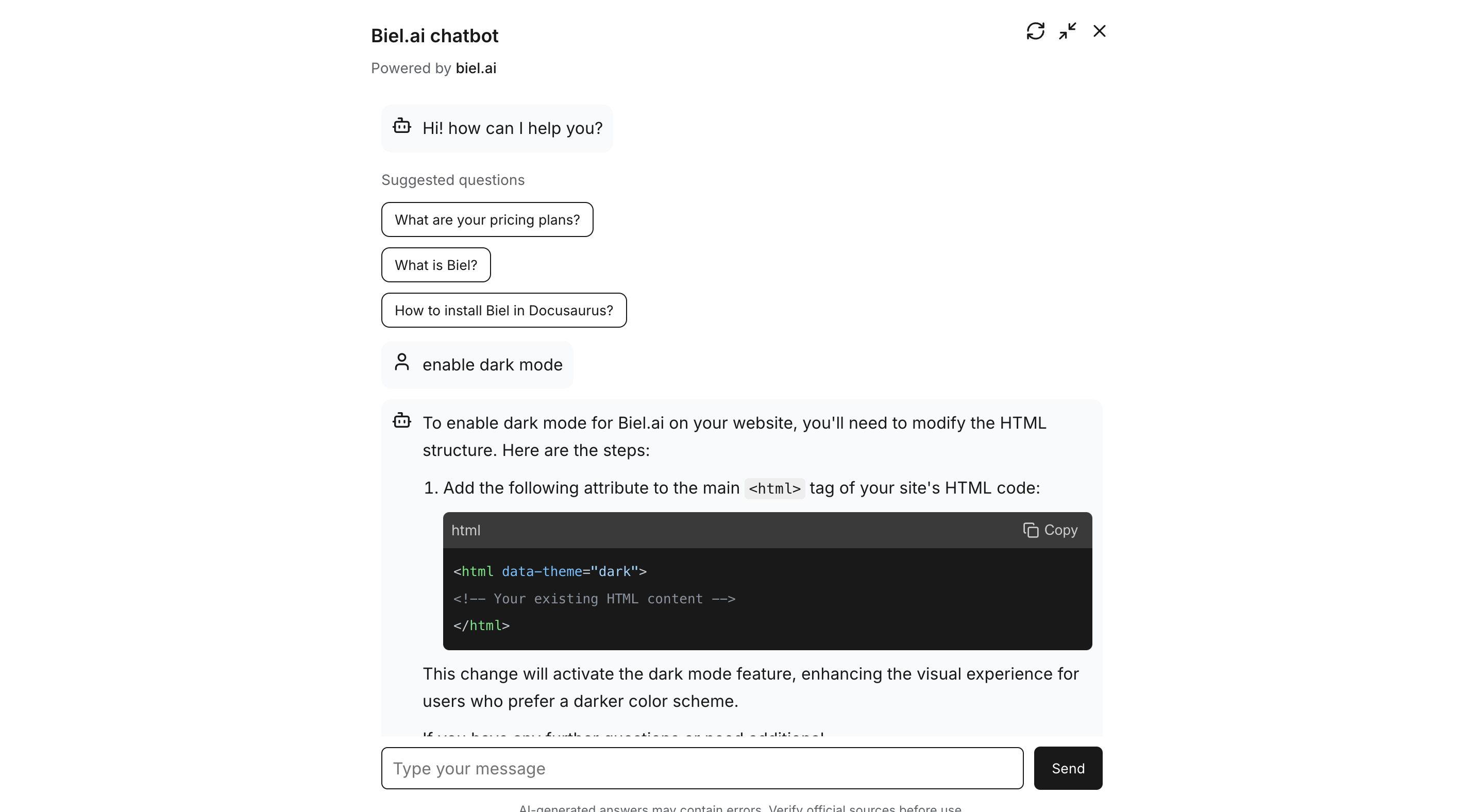
Here’s how to add Biel.ai to your documentation. This guide uses Docusaurus, but Biel.ai works with any static site generator.
Disclaimer: I built Biel.ai. It’s a paid service with a free trial.
Prerequisites
Docusaurus site (existing or new)
Node.js v18 or higher
A sitemap for your docs site
Step 1: Create a Biel.ai account
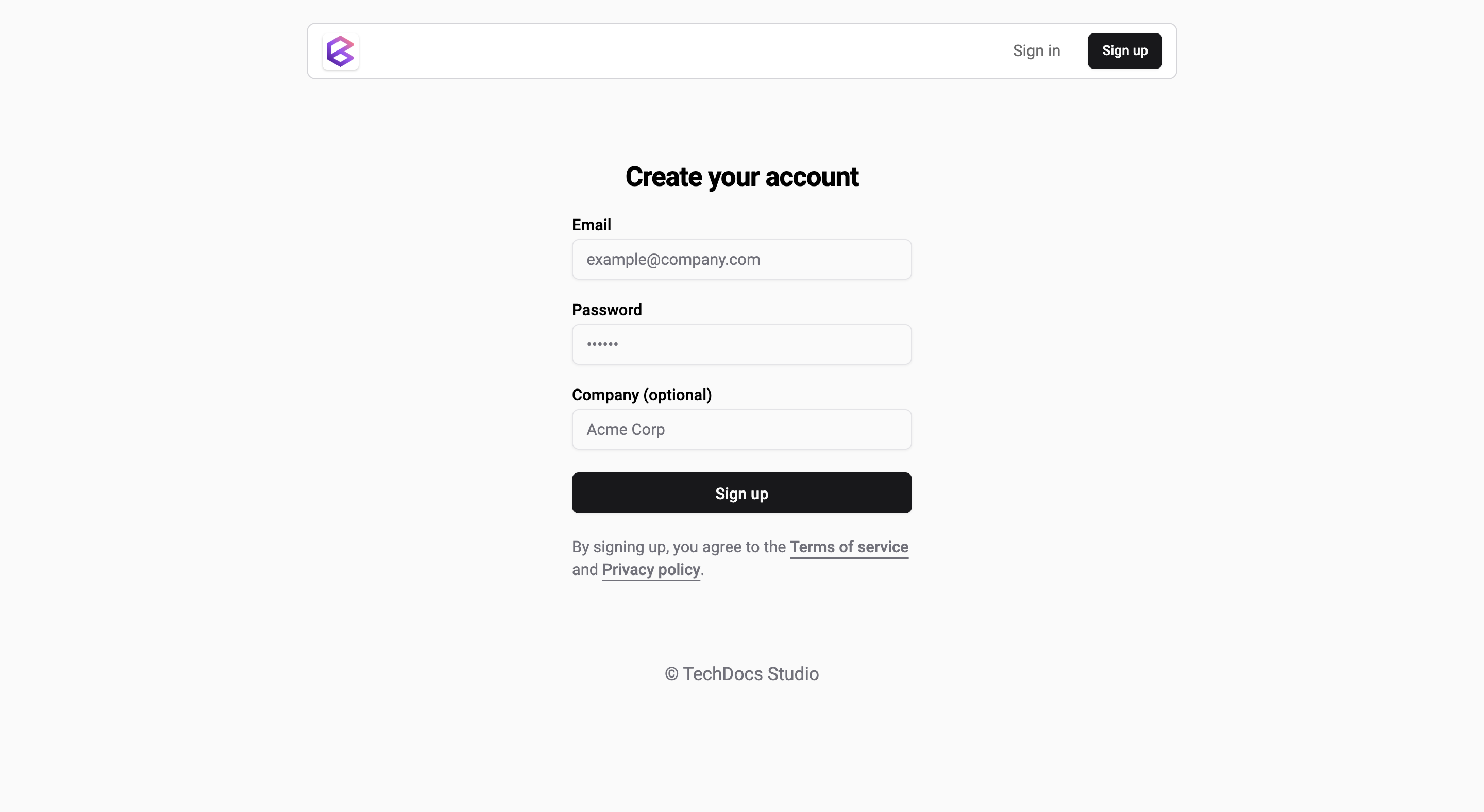
Go to app.biel.ai and sign up. Follow the on-screen instructions to create your account.
Step 2: Create your first chatbot project
In your Biel.ai dashboard, click on the Projects tab at the top.
Click Create project.
Enter your project details:
Project name: Choose a unique name.
Sources: Select Sitemap and enter the sitemap URL of your Docusaurus site (e.g.,
docs.domain.com/sitemap.xml).
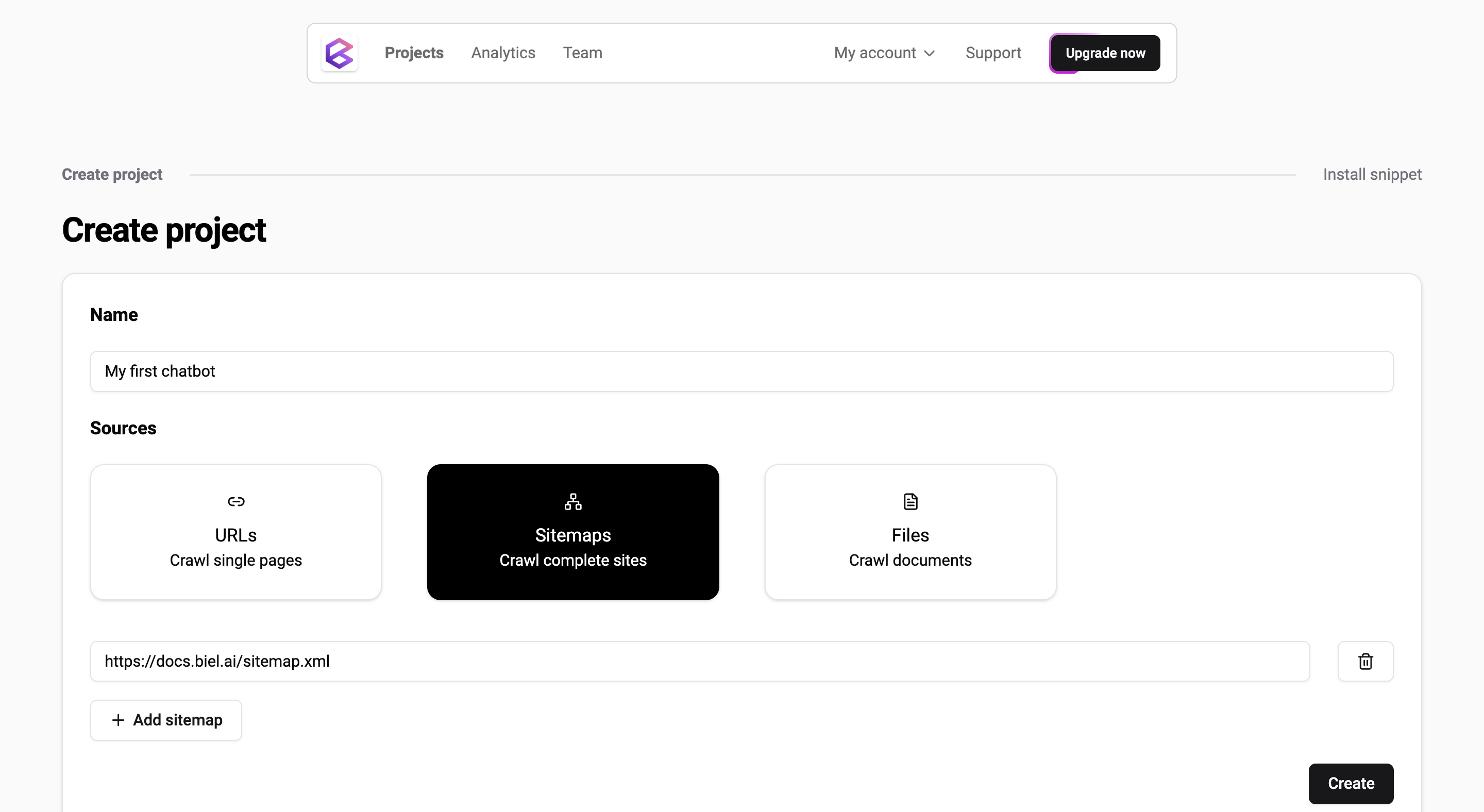
Click Save.
You’ll receive a unique Project ID. Keep this handy, as you’ll need it later.
Step 3: Install the chatbot
Install the Docusaurus package:
npm install docusaurus-bielAdd Biel.ai to your
docusaurus.config.jsfile:
plugins: [
    [
        ‘docusaurus-biel’,{
            project: ‘<PROJECT_ID>’,
            version: ‘latest’
        }
    ]
],
Replace
<PROJECT_ID>with the Project ID you received earlier.
Run your site locally to ensure everything is working properly:
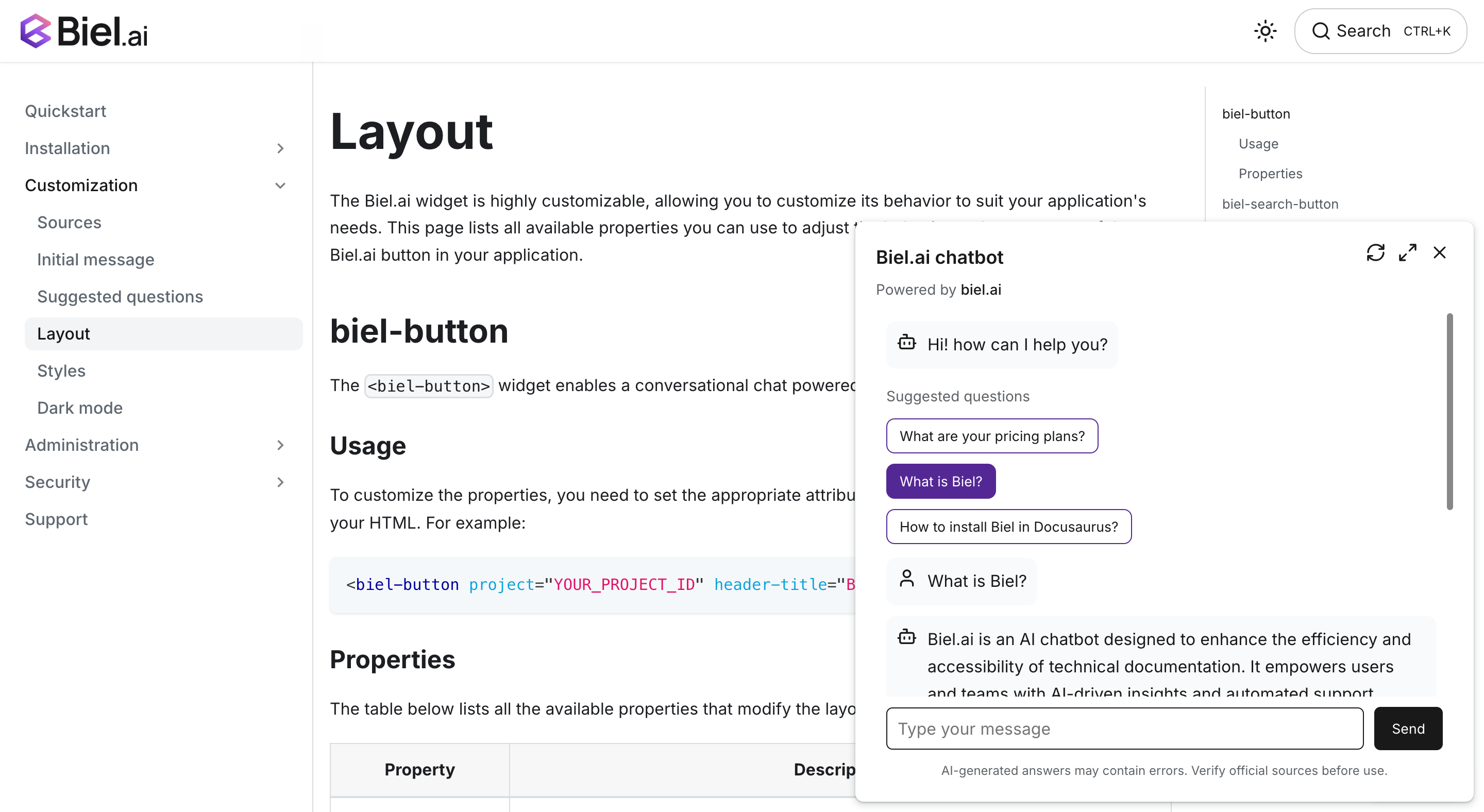
npm startThe chatbot appears as a floating widget. Users can ask questions and get answers from your docs:
Step 4 - Customize your chatbot (optional)
You can tweak the chatbot’s appearance and behavior in the docusaurus.config.js file. For example, you can change the button text or adjust the chatbot’s position:
plugins: [
    [
        ‘docusaurus-biel’,{
            enable: true,
            project: ‘<PROJECT_ID>’,
            bielButtonText: ‘ASK AI’,
            buttonPosition: ‘center-right’,
            modalPosition: ‘sidebar-right’,
            headerTitle: ‘Biel.ai chatbot’
            buttonStyle: ‘dark’,
        }
    ]
],
For advanced customization options, such as adding an initial message, suggested questions, or further editing the style, refer to Customization.
What the chatbot conversations tell you
The chatbot tracks what users ask, which reveals the gaps in your documentation. If 50 people ask about webhook authentication and you don’t have a guide, that’s a signal to write one. The questions show you what’s missing or unclear.
Also, keep in mind Biel.ai only works as well as the docs behind it. Well-structured, comprehensive docs lead to better answers. Gaps lead to poor ones.